
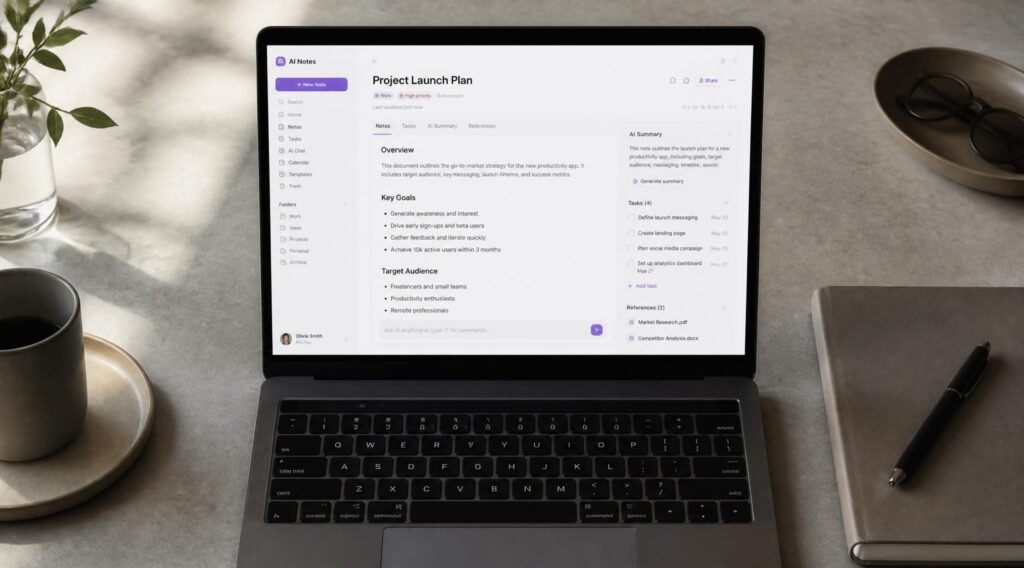
You took the notes. You know you took the notes. Somewhere in a folder, a notebook, or a sea of half-titled documents, the exact thing you need right now is sitting there, unreachable, because you can’t remember what you called it or which app you used that week. Traditional note-taking was never really built for how most people actually think — in fragments, out of order, revisited weeks later with no memory of the original context.
That’s the specific problem AI note-taking apps are built to solve. Instead of a blank page waiting for you to organize your own thoughts, these tools summarize, tag, transcribe, and connect your notes automatically, so the system does the remembering and you do the thinking. The shift matters for the same reason why habit-tracking apps have gotten smarter — offloading the tedious tracking work to software frees up the mental bandwidth for the actual task.
This guide compares the best AI note-taking apps available in 2026, breaks down what makes each one different, and walks through exactly how to pick the right one for your workflow — whether that’s meetings, research, journaling, or just keeping your brain from feeling like too many browser tabs.
Quick Answer
The best AI note-taking app depends on what you’re actually trying to capture. If you live in meetings and need accurate transcripts with searchable summaries, an app built around live transcription is the better fit. If you’re managing a personal knowledge base full of ideas that need to connect to each other over time, look for something with AI-powered linking and semantic search. If you just want your existing scattered notes turned into something usable without switching your whole workflow, a lightweight AI layer added to a familiar notebook app is usually the easiest starting point. The short version: match the tool to the kind of thinking you do most, not the tool with the longest feature list.

Table of Contents
- How AI Note-Taking Apps Work
- How to Choose the Right AI Note-Taking App
- Best AI Note-Taking Apps Available
- Comparison Table
- Best AI Note-Taking Apps for Different Use Cases
- How to Set Up AI Note-Taking Correctly
- Common Mistakes
- Expert Tips
- Final Thoughts
- Frequently Asked Questions
How AI Note-Taking Apps Work {#how-ai-note-taking-apps-work}
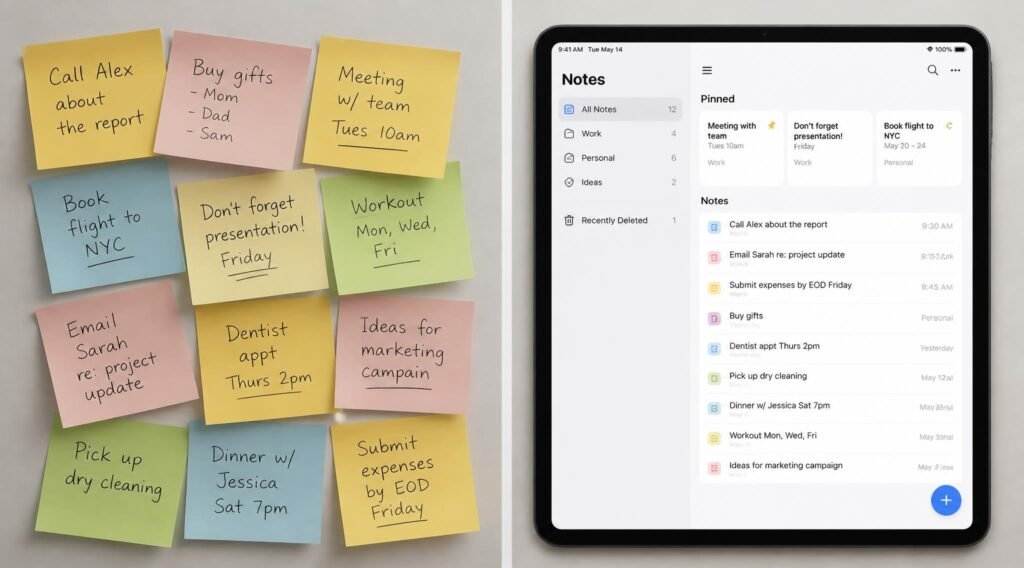
At their core, AI note-taking apps do three things a plain text editor can’t: they understand context, they organize automatically, and they retrieve information the way you’d actually ask for it. Instead of relying on folders and manual tags, most AI note-taking apps use natural language processing to read what you wrote (or said), pull out the key points, and file it in a way that makes it findable later — even if you don’t remember the exact words you used.
Under the hood, this usually involves a few layers working together. Speech-to-text models handle live transcription for voice notes and meetings. Large language models generate summaries, extract action items, and answer questions about your notes in plain English. And embedding-based search — sometimes called semantic search — lets you find a note by describing what it’s about rather than remembering its exact title. This is the same underlying shift that’s reshaping how people learn new skills faster with AI tools: the software does the organizing so you can focus on the thinking.
The practical result is a note-taking system that gets more useful the more you use it, instead of turning into digital clutter. A well-set-up AI note-taking app should feel less like a filing cabinet and more like a research assistant who’s read everything you’ve ever written down.
How to Choose the Right AI Note-Taking App {#how-to-choose}
Before comparing specific apps, ask yourself three questions:
What am I actually capturing most often? Live conversations and meetings call for strong transcription accuracy. Solo thinking, research, and journaling call for strong summarization and linking. Quick capture on the go calls for a fast, frictionless mobile app more than deep AI features.
Where does this need to live? If your team already works in a specific ecosystem — Google Workspace, Microsoft 365, Notion — an AI note-taking tool that plugs into that ecosystem will save far more time than a standalone app that adds another place to check.
How much do I need to trust the AI with sensitive information? Meeting transcripts, client conversations, and personal journals often contain information you wouldn’t want stored or processed carelessly. Check each app’s data retention and privacy policy before committing, especially for work use. The National Institute of Standards and Technology (NIST) publishes general guidance on evaluating data privacy practices that’s worth a skim before adopting any AI tool that stores personal or professional information.
Best AI Note-Taking Apps Available {#best-apps}
Notion AI
Overview: Notion AI builds directly on top of the Notion workspace many people already use for docs, wikis, and project tracking. Rather than being a separate note-taking app, it’s an AI layer woven into notes you’re already taking — summarizing long pages, drafting outlines, and answering questions about your entire workspace in one search bar.
Key Features:
- AI Q&A that searches across your entire connected workspace
- One-click summarization for long meeting notes or documents
- Autofill for databases and tables built from note content
- Translation and tone adjustment for shared notes
Best For: People and teams already using Notion for docs, wikis, or project management who want AI added on top rather than a separate app to maintain.
Pros: ✅ Deep integration with an existing workspace ✅ Strong for both personal notes and team knowledge bases ✅ Flexible enough for journaling, project notes, or research
Cons: ❌ Can feel like overkill if you only need quick notes ❌ AI features are a paid add-on on top of Notion’s regular pricing
Our Verdict: If your notes already live in Notion, the AI layer is close to a no-brainer — it turns a static wiki into something you can actually query. For anyone starting from scratch, though, it’s worth weighing against lighter options, especially if building better daily habits is more the goal than managing a full team workspace.
Mem
Overview: Mem was built around a simple idea: notes shouldn’t need folders. Everything you write goes into one continuous stream, and the AI automatically surfaces related notes, past context, and connections whenever you’re writing something new — without you having to file anything manually.
Key Features:
- Automatic surfacing of related past notes while you write
- AI-generated daily and weekly summaries of everything captured
- Smart search that understands intent, not just keywords
- Quick capture designed for fast, low-friction entry
Best For: People who take a high volume of scattered notes and want the AI to handle organization entirely in the background.
Pros: ✅ Genuinely folder-free — no manual organizing required ✅ Strong at resurfacing forgotten notes at the right moment ✅ Fast capture for people who think in short bursts
Cons: ❌ Less structured than a traditional notebook, which can feel disorienting at first ❌ Fewer built-in templates than tools like dedicated time-blocking planners
Our Verdict: Mem is the closest thing to an AI note-taking app that thinks alongside you rather than waiting for you to organize it. It pairs especially well with a habit of journaling for self-reflection, since the AI does the work of connecting today’s entry to relevant past ones.
Reflect Notes
Overview: Reflect is built for people who want a personal knowledge base rather than a running to-do list. It combines a daily-notes format with AI-powered backlinking, automatically connecting new notes to related ideas you’ve written before — a structure often called a “second brain.”
Key Features:
- Daily notes format that encourages consistent capture
- AI-suggested backlinks between related notes
- Built-in voice-to-text transcription
- End-to-end encryption for privacy-sensitive notes
Best For: People building a long-term personal knowledge base of ideas, research, or reading notes rather than short-term task lists.
Pros: ✅ Strong privacy posture with encrypted storage ✅ Backlinking helps surface old ideas at the right moment ✅ Clean, distraction-free writing interface
Cons: ❌ Steeper learning curve for people unfamiliar with “second brain” methods ❌ Less useful for quick, transactional notes like grocery lists
Our Verdict: Reflect rewards consistency — the AI connections get noticeably better the longer you use it. It’s a strong match for anyone working through building better self-discipline, since the daily-notes structure itself becomes a habit-building tool.
Google NotebookLM
Overview: NotebookLM takes a different approach: instead of being a place to write new notes from scratch, it’s an AI research assistant that reads the documents, PDFs, and notes you upload and lets you ask questions, generate summaries, and even produce audio overviews grounded entirely in your own source material.
Key Features:
- AI answers grounded strictly in your uploaded sources, reducing made-up information
- Automatic audio-style overviews summarizing your notes
- Citation links back to the exact source passage for every AI answer
- Free tier with generous usage for individual users
Best For: Students, researchers, and anyone synthesizing information from a large pile of existing documents rather than writing brand-new notes.
Pros: ✅ Strong accuracy since answers are grounded in your own sources ✅ Excellent for studying, research, or literature reviews ✅ No cost for most individual use cases
Cons: ❌ Not designed for quick daily note capture ❌ Requires uploading source material rather than writing freely
Our Verdict: NotebookLM isn’t a traditional note-taking app, but it solves a problem the others don’t: turning a stack of existing notes and documents into something you can actually interrogate. It’s a natural complement to learning new skills faster, especially for anyone working through dense course material or research, or picking up one of the in-demand skills that can help you earn more.
Microsoft OneNote with Copilot
Overview: OneNote has been a staple note-taking app for over a decade, and its Copilot integration adds AI summarization, meeting-note generation, and content search on top of the free-form canvas people already know — handwriting, images, and typed notes included.
Key Features:
- AI summarization of long or messy notebook pages
- Integration with Microsoft 365 meetings for automatic notes
- Freeform canvas supporting handwriting, typing, and images together
- Cross-device sync across desktop, tablet, and mobile
Best For: People and organizations already inside the Microsoft 365 ecosystem who want AI added to a familiar tool rather than switching platforms.
Pros: ✅ Minimal learning curve for existing OneNote users ✅ Strong meeting-note automation inside Microsoft 365 ✅ Supports handwritten and freeform notes, not just text
Cons: ❌ Copilot features require a Microsoft 365 Copilot subscription ❌ Less semantic/AI-native than newer tools built around AI from the ground up
Our Verdict: For teams already committed to Microsoft 365, adding Copilot to OneNote is the lowest-friction way to get AI note-taking without changing tools. It’s a solid fit alongside other future-proof skills worth building at the office.
Comparison Table {#comparison-table}
| App | Best For | AI Search | Auto-Linking | Starting Price |
|---|---|---|---|---|
| Notion AI | Teams already in Notion | Yes | Partial | Add-on to Notion plan |
| Mem | High-volume, folder-free capture | Yes | Automatic | Paid, free trial |
| Reflect Notes | Personal knowledge base / second brain | Yes | Automatic | Paid, free trial |
| Google NotebookLM | Research and studying from documents | Yes | Source-based | Free for most users |
| OneNote + Copilot | Microsoft 365 users | Yes | Limited | Requires Copilot add-on |
Best AI Note-Taking Apps for Different Use Cases {#use-cases}
For Meetings and Work Calls
If most of your notes come from live conversations, prioritize transcription accuracy above everything else. OneNote with Copilot and Notion AI both integrate directly with calendar and meeting tools, which matters more than flashy AI features if your real bottleneck is just getting an accurate record of what was said. A quiet setup helps too — noise-cancelling headphones for deep work make it easier to actually hear what’s worth transcribing. Pair whichever tool you choose with a habit of reviewing notes during a consistent morning routine so action items don’t quietly disappear.
For Personal Journaling and Reflection
Reflect and Mem both shine here because the AI actively resurfaces related past entries, which is exactly what makes journaling valuable over time — noticing patterns you wouldn’t catch on your own. If negative self-talk is something you’re working to interrupt, an AI note-taking app that shows you the same thought pattern recurring across weeks can be more convincing than any single journal entry.
For Research and Studying
NotebookLM is purpose-built for this — upload lecture notes, PDFs, or articles, and ask direct questions instead of re-reading everything. It’s a natural pairing with any of the best AI tools for learning new skills faster, since both are about compressing the time between exposure to information and actually retaining it.
How to Set Up AI Note-Taking Correctly {#how-to-set-up}
Getting real value out of an AI note-taking app depends more on setup than on which app you pick. The Federal Trade Commission’s guidance on evaluating app privacy practices is a useful reference before connecting any note-taking tool to sensitive calendars or documents.
Step 1: Pick One App and Commit
Bouncing between multiple note-taking apps defeats the purpose of AI organization, since the AI can only connect notes it actually has access to. Choose one primary tool based on your main use case from the sections above.
Step 2: Import or Migrate Existing Notes
Most AI note-taking apps can import from plain text, Markdown, or common formats like Evernote and Google Docs. Do this early, even if the import is messy — the AI needs a base of existing notes to start finding useful connections.
Step 3: Set Up Capture Points
Install the mobile app, browser extension, or meeting integration so notes actually get captured where they happen, rather than added later from memory.
Step 4: Let the AI Run for a Full Week Before Judging It
Semantic search and auto-linking features get noticeably better once there’s enough content to work with. A single day of notes won’t show what the tool can really do.
Step 5: Review the AI Summaries, Don’t Just Trust Them
Skim AI-generated summaries against your original notes at least a few times early on, so you know how accurate the tool is with your specific writing style and vocabulary.
Common Mistakes {#common-mistakes}
Treating AI summaries as a replacement for reading the original note. Summaries compress information, and important nuance or caveats sometimes get lost. Use summaries to decide what’s worth a closer read, not as the final word — the same discipline that helps with overcoming burnout by not letting shortcuts quietly replace real attention.
Splitting notes across multiple apps. The AI’s ability to connect ideas depends entirely on having them in one place. Keeping a “quick notes” app, a separate productivity notebook, and a “real notes” app defeats the purpose of AI-powered linking.
Never reviewing privacy settings before adding sensitive content. Meeting transcripts and personal journal entries are often the most sensitive things people type into an AI tool. Check what’s stored, for how long, and whether it’s used for model training before committing to a tool for work use.
Expert Tips {#expert-tips}
Use voice capture for ideas that come at inconvenient times. Most AI note-taking apps transcribe voice memos automatically, which means a thought that hits you mid-commute doesn’t have to wait until you’re back at a keyboard to get captured properly.
Ask the AI direct questions instead of just searching keywords. Tools like NotebookLM and Notion AI are built to answer questions like “what did I decide about the budget last month” — a far more useful query than trying to remember what you titled that note.
Schedule a weekly review of AI-generated summaries. A five-minute weekly scan of what the AI surfaced turns a passive archive into an active thinking tool, and pairs naturally with building consistent daily habits that actually stick.
Final Thoughts {#final-thoughts}
There’s no single best AI note-taking app — there’s a best fit for how you actually think and work. Best overall for most people already inside a broader workspace: Notion AI. Best for pure personal knowledge-building: Reflect Notes. Best free option: Google NotebookLM. Best for beginners who don’t want to learn a new system: Microsoft OneNote with Copilot, since it builds on a tool many people already know.
Whichever you choose, the real payoff isn’t the AI features themselves — it’s what stops slipping through the cracks once your notes actually organize themselves. That’s the same underlying goal behind building better habits overall: removing friction so the thing you actually want to do becomes the easy default. For a deeper look at where AI-assisted personal organization is heading next, this breakdown of personal development trends for 2026 is a useful next read.
Frequently Asked Questions {#faq}
Do I need an AI note-taking app, or is a regular notebook app good enough? If you rarely revisit old notes or only take a handful a week, a plain notebook app is probably fine. AI note-taking apps earn their value when you’re generating enough notes that manually organizing and finding them becomes its own chore.
How much do AI note-taking apps typically cost? Most follow a freemium model, with free tiers covering basic use and paid plans (typically running from a few dollars to around $20 a month) unlocking full AI features like unlimited summarization or advanced search. NotebookLM remains free for most individual use.
AI note-taking apps vs. traditional note apps — what’s actually different? Traditional apps store what you type. AI note-taking apps also read, summarize, connect, and let you query what you typed in plain language — the difference between a filing cabinet and a research assistant.
Can AI note-taking apps transcribe meetings automatically? Many can, particularly Notion AI and OneNote with Copilot when connected to calendar and meeting tools. Transcription accuracy varies by app and by audio quality, so it’s worth testing with a real meeting before relying on it for anything critical.
Are AI note-taking apps safe for sensitive or confidential information? It depends on the app’s specific data policy. Look for clear statements on data retention, encryption, and whether your content is used to train AI models before entering anything sensitive, especially for client or workplace notes.
What happens to my notes if I stop paying for the premium AI features? Most apps let you keep and export your raw notes even if you downgrade — you typically just lose the AI features like summarization and semantic search, not the notes themselves. Always confirm this in an app’s terms before committing long-term.
Can I switch AI note-taking apps later without losing everything? Usually yes, through export to Markdown or plain text, though AI-generated connections and links are often app-specific and won’t transfer. This is a good reason to pick a tool you’re reasonably confident you’ll stick with.
Do AI note-taking apps work offline? Most core writing and capture functions work offline, but AI features like summarization and semantic search typically require an internet connection since they run on cloud-based models.
How is this different from an AI journaling app? There’s overlap, but journaling apps are usually built around reflective, personal writing prompts, while note-taking apps are built for capturing and organizing information broadly. Some people use an AI journaling app and an AI note-taking app side by side for different purposes.
What’s the biggest mistake people make when starting with an AI note-taking app? Expecting the AI to be useful immediately. These tools improve as they accumulate more of your notes — give it real use for at least a week or two before judging whether it fits your workflow.
Author: Jhon Last Updated: September 2026