
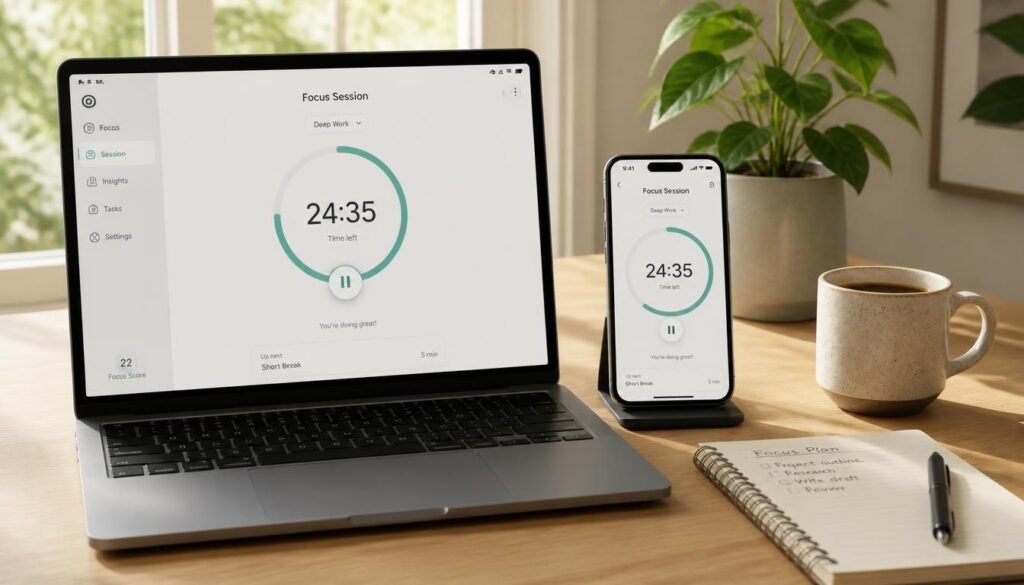
You sat down to finish one task. Ten minutes later you are three tabs deep in something unrelated, and you cannot quite remember how you got there. If that sounds familiar, you do not have a willpower problem. You work inside an environment engineered to pull your attention away, and that is exactly the problem the best app blockers are built to solve.
Research by Gloria Mark at UC Irvine suggests it can take more than 23 minutes to fully regain focus after an interruption. Worse, a large share of those interruptions are self-inflicted: a reflexive tap, a quick check, a just-one-video detour. A blocker removes the option before the reflex fires, which is why it works where good intentions fail.
If you have already tried to stop procrastinating through sheer resolve and watched it fade by Thursday, this guide is for you. We compare five proven tools, explain how to choose, and show you how to set one up so it actually sticks. If your goal is longer stretches of concentration, pair this with our guide on how to improve focus and get deep work done.
Quick Answer
The best app blockers depend on where you lose focus. Freedom is the best all-rounder because one session blocks distractions on your phone and computer at once. Cold Turkey is the toughest option for desktop lockdowns, Opal suits iPhone users who want analytics and a hard-to-quit mode, ScreenZen is a free and gentle way to add a pause before you open an app, and AppBlock is a flexible pick for Android and Chrome. Match the tool to your weakest device, then make it hard to cancel in a weak moment. A blocker you can switch off in two taps is only a suggestion.

Table of Contents
- Introduction
- Quick Answer
- What Are the Best App Blockers and How Do They Work?
- How to Choose the Right App Blocker
- Best App Blockers Available in 2026
- Comparison Table
- Best App Blockers for Different Use Cases
- How to Set Up an App Blocker Correctly
- Common Mistakes
- Expert Tips
- Final Verdict
- Frequently Asked Questions
What Are the Best App Blockers and How Do They Work?
An app blocker is software that stops you from opening specific apps or websites during times you choose. Some work on a schedule, such as no social media from 9 to 12. Others run on demand, as a focus session you start with one tap. The strictest versions lock the session so you cannot end it early, no matter how much you want to.
Under the hood, the tools differ. On iPhone, blockers rely on Apple’s Screen Time framework to shield apps. On Android, they typically use accessibility permissions to detect and cover blocked apps, which can make blocking slightly less airtight. On computers, desktop blockers hook into your system or browser to refuse connections to listed sites and, in some cases, to close blocked programs.
The reason this category matters is simple. Built-in focus modes are easy to override, and the override button is always within reach. The best app blockers add friction in the right place: a timer you cannot cancel, a password someone else holds, or a pause screen that makes you ask yourself if you really want to open the app. If you already use a timer method, a blocker also makes your Pomodoro timer app far more effective, because the break from distraction is enforced rather than hoped for.
How to Choose the Right App Blocker
Before comparing features, answer three short questions. They narrow the field faster than any review.
1. Where do you actually get distracted? If your problem is a laptop full of browser tabs, you need a desktop or browser blocker. If it is thumb-scrolling on your phone, you need a mobile tool. If it is both, you need one that syncs across devices.
2. How strict do you need to be? Be honest. If you tend to disable restrictions the moment you feel the itch, pick a tool with a locked mode, a password lock, or a session you cannot end. If you only need a nudge, a softer pause screen may be enough.
3. What will you pay, and how often? Prices range from free to a few hundred dollars for lifetime plans. Subscriptions are cheaper to start; one-time purchases win over several years. Check each vendor’s pricing page before you commit, because plans change.
Once you know your answers, the picks below sort themselves. If you are unsure how your day is structured, read our time management guide for busy professionals first, so you block the right hours.
Best App Blockers Available in 2026
Prices below were checked in November 2026 and can change, so confirm on each vendor’s site before buying.
1. Freedom — Best Overall
Overview: Freedom is a long-running blocker that works across Mac, Windows, iOS, Android, and Chrome. You start one session, and the same blocklist applies to every device you own. That matters because most people simply move their distraction to whichever device is not locked. Sessions can be scheduled to repeat, and a locked mode stops you from ending a session early.
Key Features:
- Cross-device sync with one blocklist and one session
- Recurring and scheduled sessions
- Locked mode to prevent early exits
- Website and app blocking, plus focus sounds
Best For: People who switch between a phone and a computer all day.
Pros:
- ✅ One session covers every device
- ✅ Locked mode adds real friction
- ✅ Yearly plan is affordable per month
Cons:
- ❌ Monthly billing is expensive compared with the yearly plan
- ❌ Less phone-specific analytics than Opal
Pricing: Free tier with limited features. Premium is around $8.99 per month or $39.99 per year, and a one-time Forever plan is also offered, with the price varying by store.
Our Verdict: Freedom is the safest recommendation for most readers. If you want the strongest cross-device coverage, start here and test the 7-day trial. It pairs naturally with a smarter schedule, so also look at our roundup of the best AI calendar apps to decide when your focus blocks should run.
2. Cold Turkey Blocker — Best for Strict Desktop Lockdowns
Overview: Cold Turkey is built around one idea: make distractions genuinely hard to reach. It runs on Windows and macOS, blocks websites and, on the Pro version, applications, and offers some of the toughest lock options in the category. Its Frozen Turkey mode can lock you out of your computer entirely until a timer ends, which is either a gift or a threat depending on your deadline.
Key Features:
- Website and app blocking with detailed schedules
- Frozen Turkey full-lockout mode (Pro)
- Password and random-text lock options
- Usage stats and break allowances
Best For: Writers, developers, and students who need an unbreakable desktop session.
Pros:
- ✅ Very hard to bypass in a weak moment
- ✅ One-time Pro purchase instead of a subscription
- ✅ Generous free version for basic website blocking
Cons:
- ❌ Desktop only, so you need a separate phone blocker
- ❌ Utilitarian design, and strict locks can backfire if you set a timer too long
Pricing: Free version available. Pro is a one-time purchase, generally quoted between roughly $39 and $45 depending on promotions. App blocking is most complete on Windows, so Mac users should check current feature notes.
Our Verdict: If your biggest enemy is a computer full of tempting tabs, Cold Turkey is the most uncompromising tool here. Combine it with a good pair of noise-cancelling headphones for deep work and you have built a proper focus cave.
3. Opal — Best for iPhone Users Who Want Insight
Overview: Opal is a polished screen-time and focus app aimed mainly at phones, with growing support on other platforms. It starts focus sessions, schedules blocks, and scores your focus so you can see patterns instead of guessing. Its strictest mode, which you cannot switch off mid-session, is the feature most people actually install it for, and it sits on the paid plan.
Key Features:
- Focus sessions and automatic schedules
- Hard mode that cannot be ended early (paid)
- Analytics on unlocks, peak hours, and your most-used apps
- Free plan with one rule
Best For: iPhone users who respond to data, streaks, and scores.
Pros:
- ✅ Excellent analytics that reveal your real habits
- ✅ Clean, well-designed interface
- ✅ Usable free plan to test the idea
Cons:
- ❌ Among the most expensive blockers per year
- ❌ The strictest mode is locked behind Pro
Pricing: Free plan with one rule. Pro is about $19.99 per month or $99.99 per year, with a lifetime option listed at $399. Students may qualify for discounts.
Our Verdict: Use the free plan for two weeks and count how often you end sessions early. If the answer is rarely, Opal is a nice premium extra. If often, you need the paid hard mode or a stricter tool. For a related approach to seeing your patterns, explore the best AI habit-tracking apps.
4. ScreenZen — Best Free Option for Mindful Pausing
Overview: ScreenZen takes a gentler route. Instead of slamming a wall in front of an app, it adds a pause before you open it, giving your brain a few seconds to ask whether you really want to. You can set delay timers, daily limits, and an optional strict block. For people who open apps on pure reflex, that small gap can break the loop surprisingly well.
Key Features:
- Pause screen before chosen apps open
- Configurable delay timers and daily limits
- Optional stricter blocking
- Free to start on iPhone and Android
Best For: Beginners and anyone who wants to test a blocker without paying.
Pros:
- ✅ Free to begin with
- ✅ Builds awareness rather than just restriction
- ✅ Low-pressure and easy to set up
Cons:
- ❌ Easy to bypass when you are determined
- ❌ Fewer cross-device and desktop features
Pricing: Free to start. Check the app for any optional premium tier.
Our Verdict: ScreenZen is the best first step if you have never used a blocker. It works best alongside a calming habit, so consider adding one of the best meditation apps for stress management to fill the gap you leave when you stop scrolling.
5. AppBlock — Best for Android and Browser Flexibility
Overview: AppBlock is a mobile-first blocker that also offers a Chrome extension. You build profiles for work, study, or sleep, set schedules, and turn on strict modes when you need them. It is free to download with in-app purchases, which makes it easy to try on Android before deciding whether the upgrade is worth it.
Key Features:
- Multiple profiles for different contexts
- Schedules and strict modes
- App blocking on mobile plus a Chrome extension
- Screen-time monitoring and limits
Best For: Android users who want profiles and a browser extension in one place.
Pros:
- ✅ Free to download, so low risk to test
- ✅ Profiles suit different parts of your day
- ✅ Works on mobile and in Chrome
Cons:
- ❌ Some of the best features require in-app purchases
- ❌ Desktop coverage beyond Chrome is limited
Pricing: Free with in-app purchases. Confirm current plan prices in your app store.
Our Verdict: AppBlock is a practical middle ground when you want more control than a built-in focus mode but not a heavy system. Use its profiles to mirror the blocks in your time-blocking planner or notebook, so your paper plan and your phone agree.

Comparison Table
| Product | Best For | Platforms | Strictness | Starting Price |
|---|---|---|---|---|
| Freedom | Phone + computer syncing | Mac, Windows, iOS, Android, Chrome | High (locked mode) | Free tier; about $39.99/year |
| Cold Turkey | Desktop lockdowns | Windows, macOS | Very high | Free; Pro one-time, roughly $39–$45 |
| Opal | iPhone analytics | iPhone (also Android and Mac) | High (paid hard mode) | Free; $99.99/year |
| ScreenZen | Gentle, free pausing | iPhone, Android | Low to medium | Free |
| AppBlock | Android + Chrome profiles | Android, iOS, Chrome | Medium to high | Free with in-app purchases |
Best App Blockers for Different Use Cases
The right choice often depends on who you are and when you work. Here is how the best app blockers map to three common situations.
For Desktop Deep Work
If you write, code, design, or research, your enemy is the open browser. A strict desktop tool like Cold Turkey, or Freedom with its locked mode, keeps the biggest time-sinks out of reach for the length of a session. Start with 90 minutes, block only what you know pulls you away, and keep the rest of the internet open for research. Smart people are often the ones most tempted to switch tasks, which we unpack in why smart people procrastinate more. If you are building a skill, the consistency advice in our guide to learning new skills fits neatly with a daily blocked session.
For Phone Doomscrolling
If the phone is the problem, a mobile-first tool is non-negotiable. Opal gives you data and a hard mode, ScreenZen gives you a pause, and AppBlock gives you profiles. Block the two or three apps you open most, not your entire home screen. Notice how you feel afterward, too: a mood journal or one of the best mood tracker apps can show whether a scroll session actually lifts or drains you. Constant checking also feeds rumination, a link explored in why overthinking is ruining your happiness.
For Students and Exam Season
Students benefit from schedule-based blocking that matches class and study hours, with a short, predictable break between sessions. A free or low-cost tool is plenty to start. Tie each block to a specific goal, as in our guide on how to set goals you will actually stick to, and keep notes tidy with one of the best AI note-taking apps so you spend your protected hours learning, not hunting for files.

How to Set Up an App Blocker Correctly
A good tool still fails if it is configured badly. Follow these five steps.
Step 1: Audit Your Distractions
For three days, note which apps and sites you open without meaning to. Your phone’s screen-time report is a good starting point. Pick the top three to five offenders. Starting small keeps the system from feeling punishing.
Step 2: Build a Short Blocklist
Add only those top offenders. Resist blocking everything on day one, because an overly strict setup makes you quit the whole experiment. You can always expand the list next week.
Step 3: Schedule Your Focus Windows
Set blocks around your natural peak energy, usually the first two to four hours of work. A planner helps here, so browse the best planners and journals for goal setting and productivity if you want a physical anchor for your schedule.
Step 4: Add Friction to the Off Switch
Turn on locked mode, a password, or a session you cannot end. Ask a partner or friend to set the password if you know you will talk yourself out of it. This single step separates a working blocker from a decorative one.
Step 5: Review and Adjust Weekly
After seven days, check how many times you tried to open a blocked app and how many sessions you ended early. Add what is still leaking, remove what you do not need, and extend your sessions slowly.
Common Mistakes
Blocking everything at once. When the first week feels like a punishment, people uninstall the tool and conclude blockers do not work. Start with a handful of apps and scale up. A gentler launch pairs well with a tiny first win, like the ideas in our 10 daily habits that will change your life in 30 days.
Leaving an easy way out. If you can pause the blocker in two taps, you will, usually at the exact moment you need it most. Use a locked mode, and reread what high performers actually do in our list of productivity habits of highly successful people.
Ignoring the underlying urge. A blocker closes a door, but it does not explain why you wanted to walk through it. Boredom, stress, and avoidance are the real drivers. Build the skills behind the tool with our guide to building self-discipline, so the blocker supports the habit instead of replacing it.
Expert Tips
Test for two weeks before paying. Use a free plan or trial and count how often you end sessions early. If it is rarely, the cheaper tool is fine. If it is often, you need stricter locks, or a tool that does not let you cancel.
Use an allowlist for your hardest days. Some blockers let you block everything except a short list of approved sites. On deadline days, switch to that mode so you stay inside the few tools your task actually needs.
Replace the habit, not just the app. Decide in advance what you will do when you feel the urge: stand up, drink water, or write one line. A written rule beats improvising. If you want reading material to fill that gap, our list of the best productivity books is a good start.
Final Verdict
The best app blockers do not win by being clever. They win by being hard to cancel and easy to start. For most people, Freedom is the best overall because it covers phone and computer together. Cold Turkey is the best for strict desktop work, Opal is the best for iPhone users who want data, ScreenZen is the best free and beginner-friendly option, and AppBlock is the best for Android and Chrome flexibility. Pick the one that fits your weakest device, set a short blocklist, and lock it.
Then build the routine around it. A strong start to the day makes every focus block easier, so try our guide to building a morning routine that actually sticks. For quick-win ideas, browse 50 daily habits that can change your life in one year and the 7 morning habits millionaires swear by.
Frequently Asked Questions
1. What are the best app blockers in 2026? Freedom, Cold Turkey, Opal, ScreenZen, and AppBlock are among the best app blockers right now. Freedom is the best all-rounder, Cold Turkey is the strictest on desktop, Opal is strong on iPhone, ScreenZen is free and gentle, and AppBlock suits Android and Chrome.
2. Do I need an app blocker if my phone has Screen Time or Digital Wellbeing? Built-in tools are a fine starting point, but they are easy to override, and the override is always a tap away. A dedicated blocker adds locked sessions, passwords, scheduling, and cross-device control that built-in tools usually lack.
3. Are free app blockers good enough? Often, yes, for light use. Free tiers usually limit the number of rules or remove the strictest lock. If you find yourself ending free sessions early, that is a sign a paid hard mode or a stricter tool would help.
4. How much do app blockers cost? Prices vary widely. Freedom is around $39.99 per year, Cold Turkey Pro is a one-time purchase of roughly $39 to $45, and Opal Pro is about $99.99 per year. ScreenZen is free to start. Always check the vendor’s pricing page, since plans change.
5. What is the difference between an app blocker and a website blocker? An app blocker stops you from opening installed apps, while a website blocker stops browsers from loading specific sites. The best tools do both, and some also sync across devices so you cannot simply switch to your phone.
6. Can I still bypass an app blocker? Possibly. Determined users can uninstall tools, change settings, or switch devices. That is why locked modes, passwords held by someone else, and cross-device blocking matter more than any single feature.
7. Will blocking apps hurt my productivity if I need them for work? Only if you block the wrong things. Block entertainment and social sites, and keep work tools open. An allowlist mode lets you permit only a short list of approved sites for deadline days.
8. How long should a focus session be? Start with 45 to 90 minutes, then build from there. Short sessions are easier to complete, and finishing them builds trust in the system. Link sessions to small, repeatable habits like those in our 20 tiny habits that can transform your life.
9. Are app blockers safe and private? Reputable tools explain what data they collect in their privacy policies. Because blockers need system or accessibility permissions to work, read the policy and the permissions list before installing, and choose established vendors.
10. Which app blocker is best for ADHD-style distraction or students? No tool replaces professional advice, but many people with attention difficulties and many students find scheduled, locked sessions helpful. Start free with ScreenZen or Opal’s free plan, then move to a stricter tool if you keep quitting early.
Author: Jhon
Last Updated: November 2026